Detecting an attacker moving laterally in your environment can be tough. It can be difficult to obtain the necessary logs to identify this activity and differentiate between what is normal and what is malicious.
This post highlights a few things that you can look out for that could identify an attacker moving between hosts. With sysmon installed on Windows hosts and the events being sent to SIEM, you can detect attempts to move laterally and questions during incident response can be answered in minutes versus hours.
Install and Configure Sysmon on a Windows Host
Download sysmon and install it on the Windows host as follows.
sysmon -i -n
You can view sysmon events locally by opening Event Viewer and navigating to Microsoft - Windows - Sysmon - Operational. You can see that Sysmon logged the creation of a new process, powershell.exe, in the image below.
Add the following text to the inputs.conf file.
[WinEventLog://Microsoft-Windows-Sysmon/Operational]
disabled = false
renderXml = true
Sysmon events from the host can now be found in Splunk under sourcetype="XmlWinEventLog:Microsoft-Windows-Sysmon/Operational"
Install the Splunk "Add-on for Microsoft Sysmon"
Download the add-on from the following location:
Unzip the contents of the compressed file to following folder on the Splunk server:
C:\Program Files\Splunk\etc\apps
Restart Splunk Light.
Events in sourcetype="XmlWinEventLog:Microsoft-Windows-Sysmon/Operational" should now be parsed into the appropriate fields.
Sysmon Event Codes
In the examples below, we are interested in the following sysmon event IDs:
Event ID 1: Process creation
Event ID 3: Network connection
Refer to the official sysmon page for further details on the various Event Codes.
Detecting an Attacker Establishing SMB Sessions to Move Laterally
Attacker uses the following command or similar to establish a session to the victim.
net use \\192.168.1.88
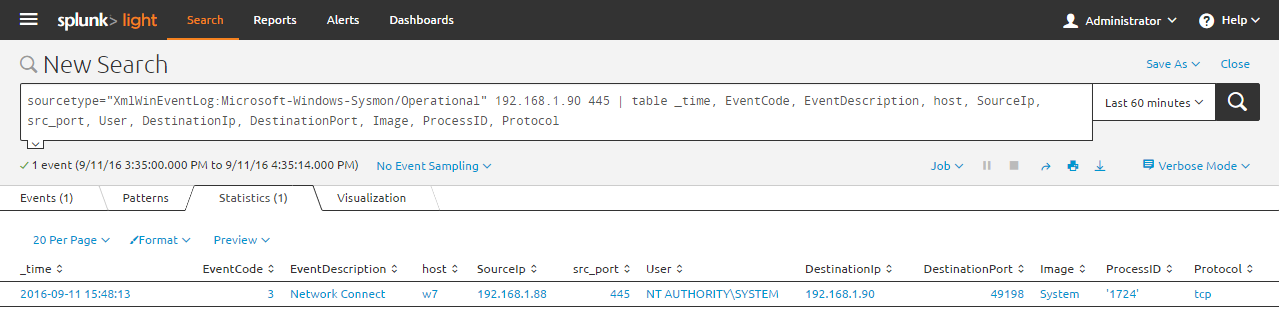
Search sysmon events in Splunk to identify the suspicious SMB (Port 445) session established between the two Windows hosts. See the search string below.
sourcetype="XmlWinEventLog:Microsoft-Windows-Sysmon/Operational" 192.168.1.90 445 | table _time, EventCode, EventDescription, host, SourceIp, src_port, User, DestinationIp, DestinationPort, Image, ProcessID, Protocol
Run the following command on the victim to view the established SMB session to the attacker.
netstat nao | find "ESTABLISHED"
Is it normal for a SMB session to be established between these two hosts? Analyze events in your environment, understand what is normal in terms of process creation/termination and network connections established between hosts, and have your analysts investigate and identify abnormal activity.
Detecting an Attacker Using PowerShell to Move Laterally
Windows RemoteManagement (WinRM) traffic initiated via PowerShell will traverse ports 5985 and 5986.
In this example, the attacker executes the commands below to remotely execute scripts on the victim or establish a connection to the victim.
In Splunk, we can see the following sysmon events to identify the suspicious activity.
We can see WinRM traffic from the attacker to the victim over port 5985.
sourcetype="XmlWinEventLog:Microsoft-Windows-Sysmon/Operational" 5985 OR 5986 | table _time, EventCode, EventDescription, host, SourceIp, src_port, User, DestinationIp, DestinationPort, Image, ProcessID, Protocol

We can see the WinRM Remote PowerShell process (wsmprovhost.exe) on the victim start the ping.exe and systeminfo.exe processes. We can also see the strings entered on the command line. Would this behavior be normal in your environment?
sourcetype="XmlWinEventLog:Microsoft-Windows-Sysmon/Operational" wsmprovhost.exe | table _time, EventCode, EventDescription, host, Image, ProcessID, ParentProcessId, CommandLine
It is possible that the above activity happens often in your environment, which can make it challenging to differentiate between expected and malicious activity. Attackers will use tools that are native to the OS in the hope that their activities go unnoticed. It is important to be familiar with what's normal in your environment and monitor for behavior that is out of the ordinary.